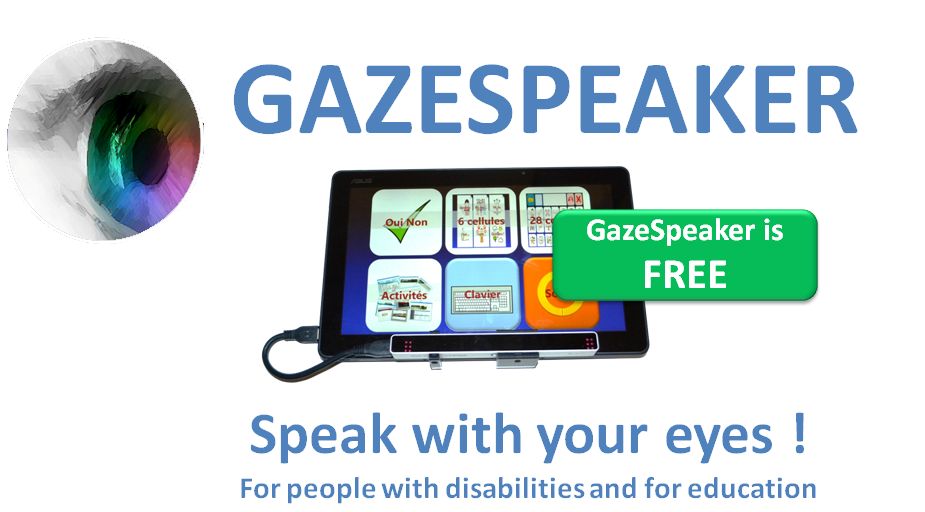
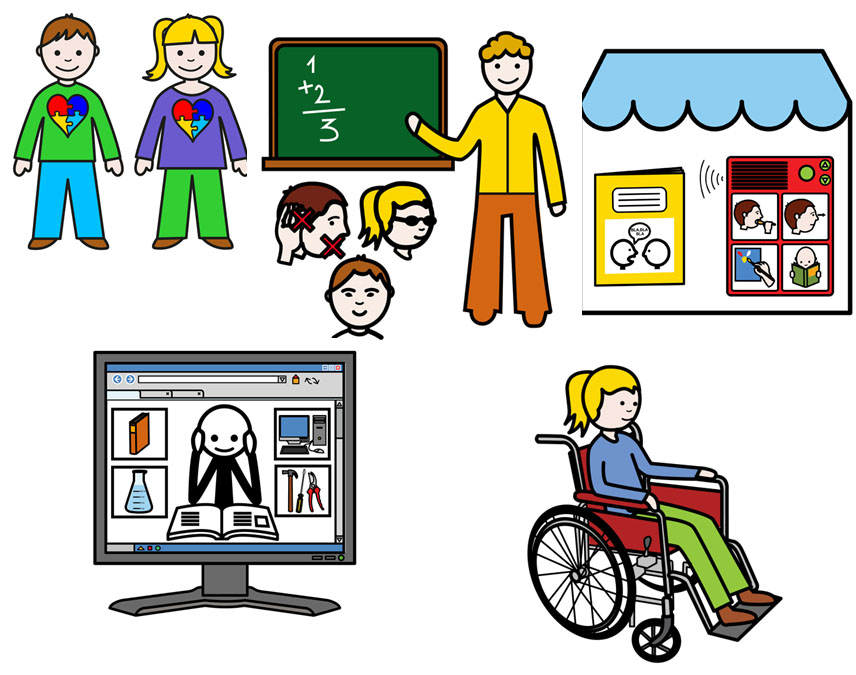
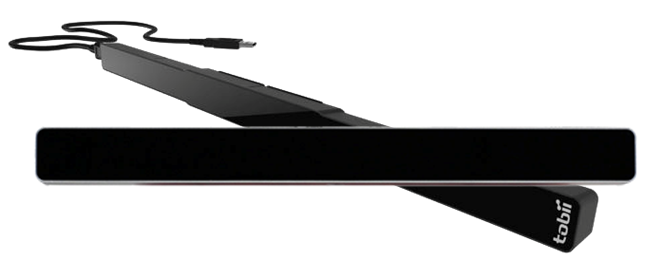
Gazespeaker is a free (open source) program designed for people with special needs and for education. It relies on eye tracking technologies to facilitate communication and interactions.
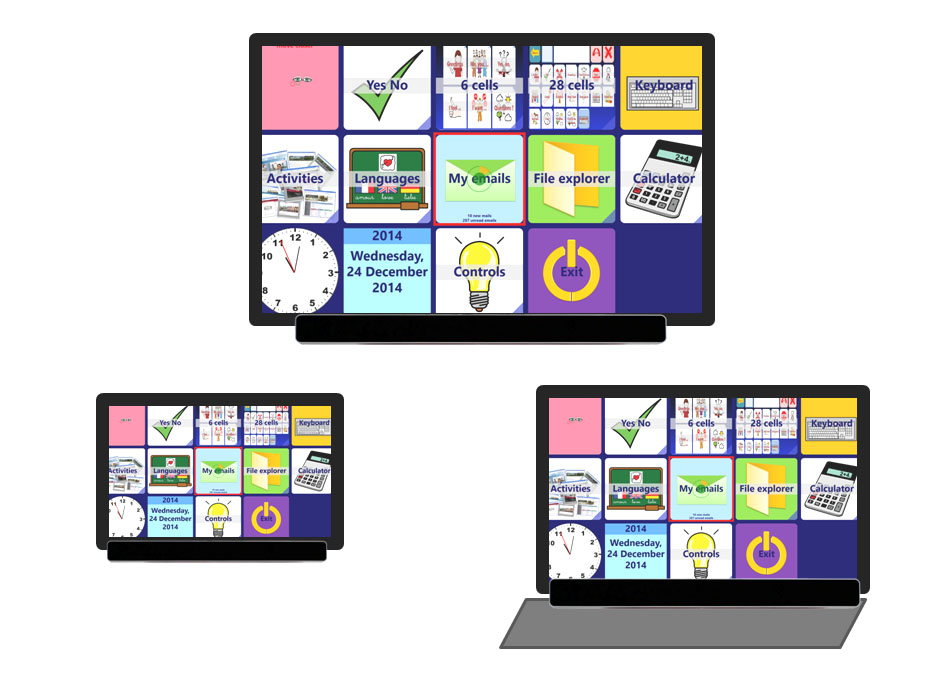
Gazespeaker is responsive and compatible with multiple form factors: desktop, laptop and windows tablets. Technical requirements: Windows 7 (Windows 8.1 recommended), 4 GB memory, SSD recommended, CPU Intel I3 when using the eye tracking system (I5 recommended)
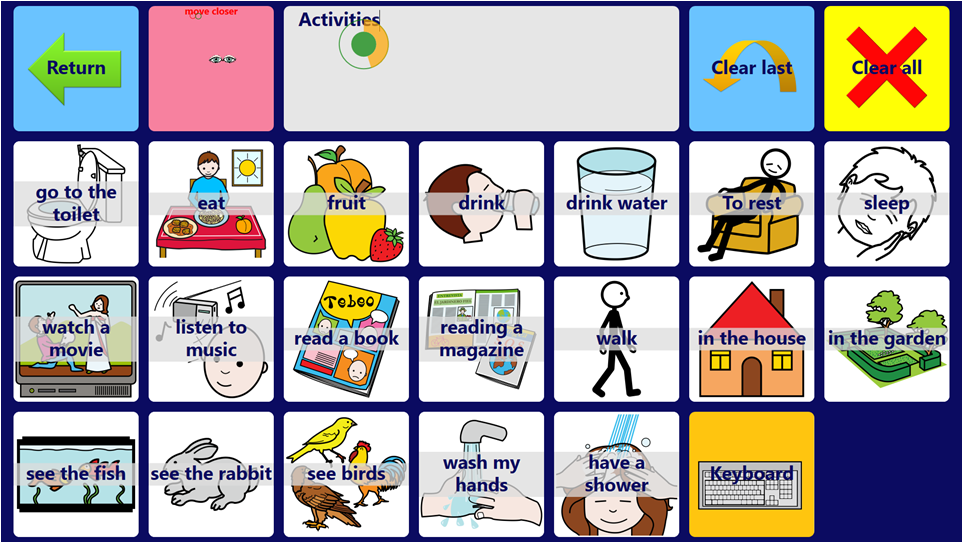
Augmentative and Alternative Communication (AAC) visual grids are based on the ARASAAC color pictograms: you can also adapt these grids with the visual grid editor integrated in Gazespeaker
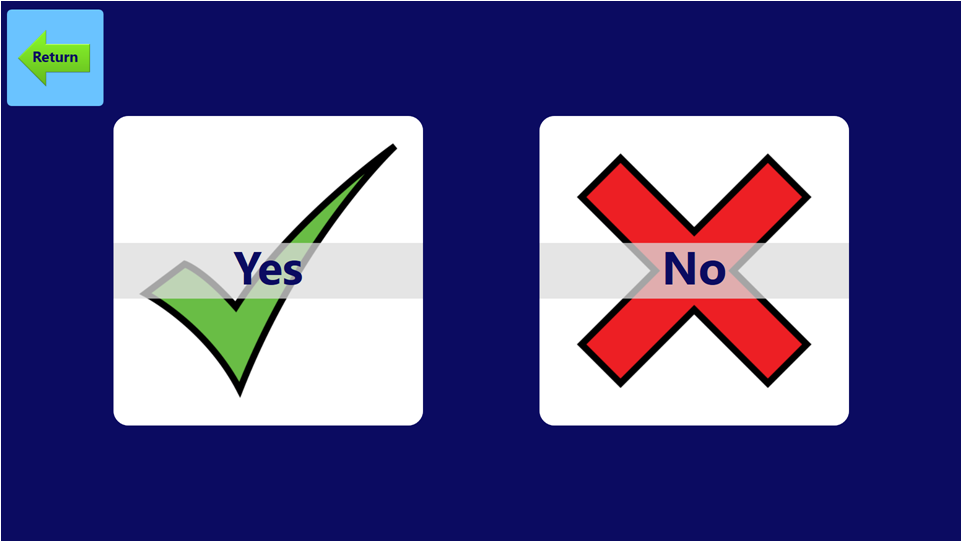
Yes – No grid to be used as a first experience of communication. This grid can be used for children or during the initial days of training with Gazespeaker.
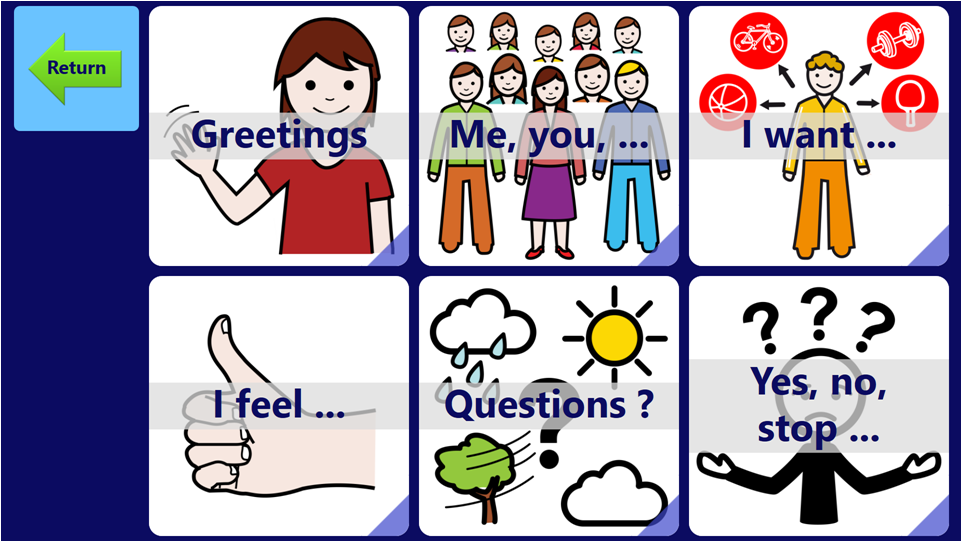
This set of grids is based on grids with 6 cells. This system can define a maximum of 6 x 6 cells, i.e. 36 different words or interactions. NB: based on the ARASAAC color pictograms.
These grids are used are based on a more significant set of cells: each grid contains a first row for general purpose buttons and a textwriter, while the 3 other rows contains 21 cells. This set contains a vocalubulary of several hundreds of words (maximum of 21 x 21 =...
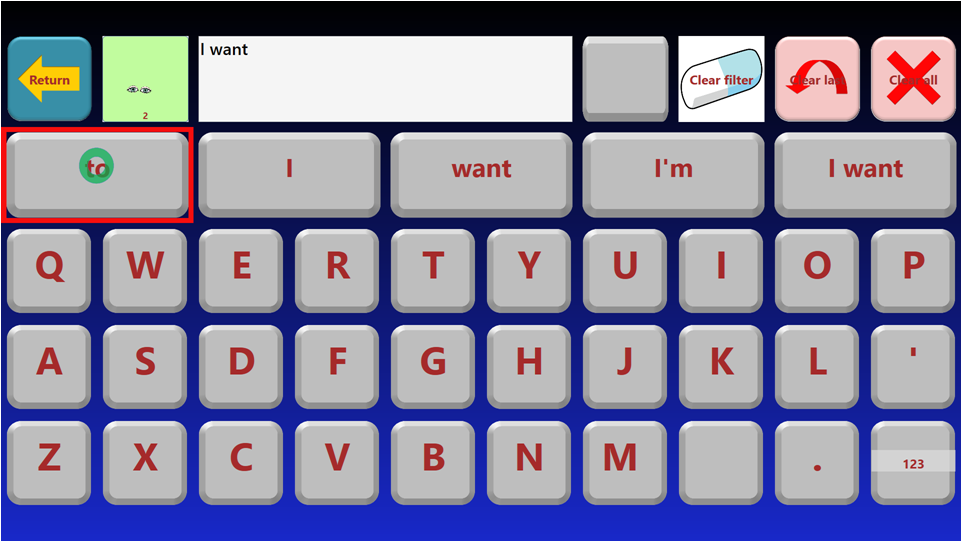
The keyboard selects automatically the words and sentences based on your usage. Words are selected in a dictionary with word frequencies in each language. The system progressively learns your most frequent sentences and automatically adapts to your style.
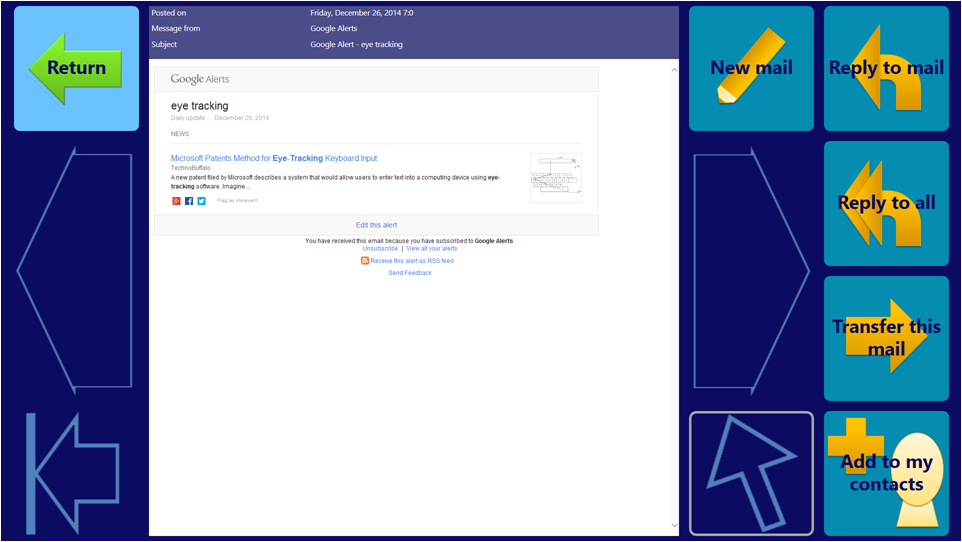
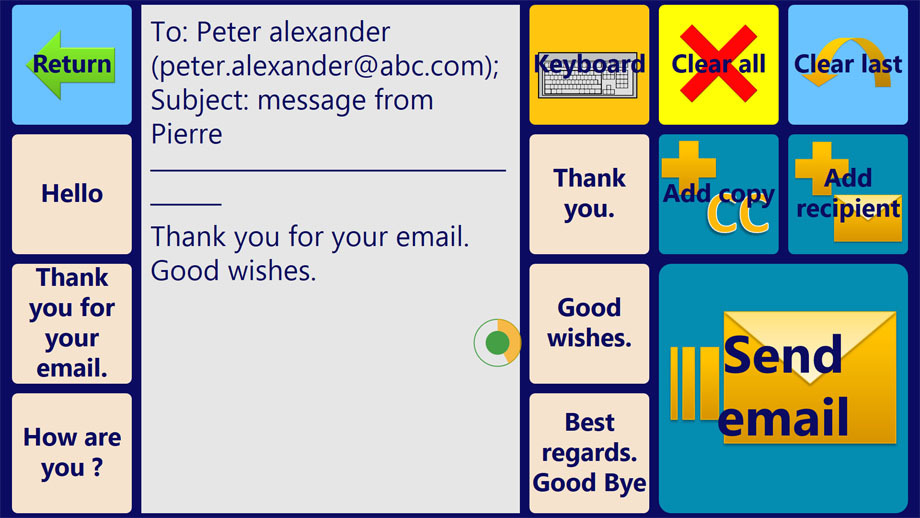
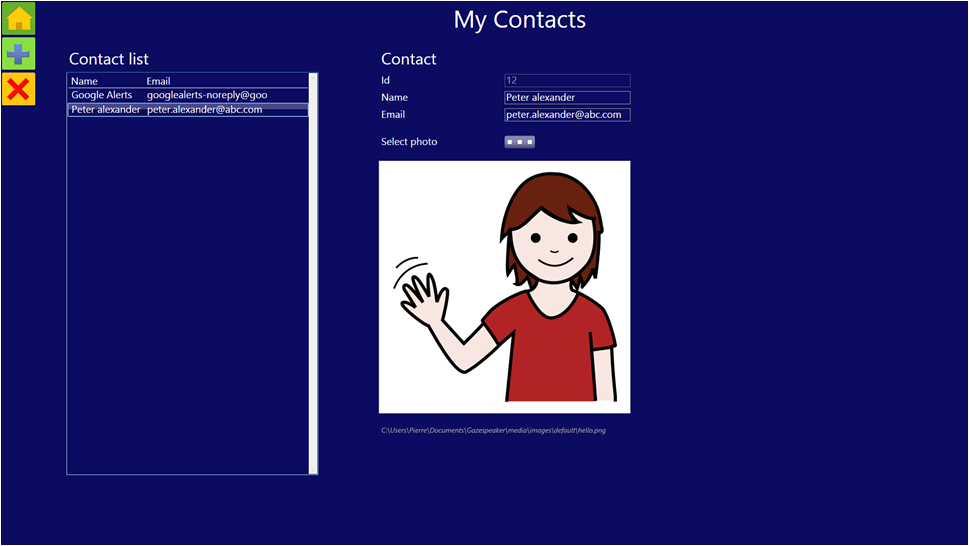
Manage your contacts with a specific module. The contact list is then automatically accessible when you create new mails, or when you want to reply or transfer a mail.